SharePoint tenant branding
Everything needed to make the internal SharePoint site look like Men's Wellness Centers: section tile images, the tenant theme palette, site logo files, and the setup order to apply them.
Complete library
Download every SharePoint image
87 files in one ZIP: section tiles, page covers and banners, logo and favicon files, the tenant theme JSON, and both twelve-image photo sets.
Photo branding set
Six ready-to-use SharePoint images combining approved MWC logos with existing location and team photography. No generated people.

Welcome header
Home page header or full-width image web part

Announcements
News section and announcement landing page
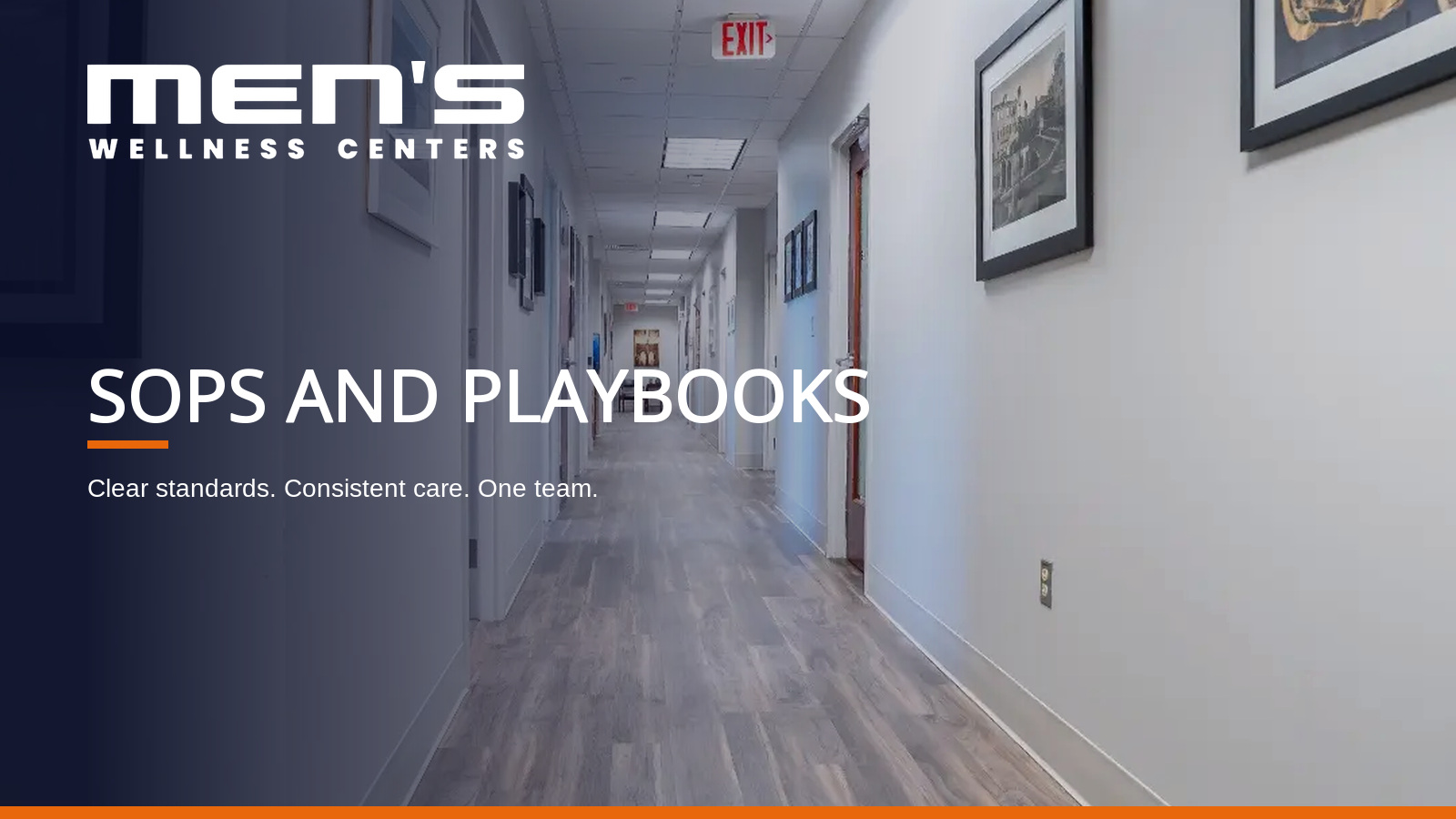
SOPs and Playbooks
Operations library and playbook navigation

HR and Benefits
People resources and benefits hub
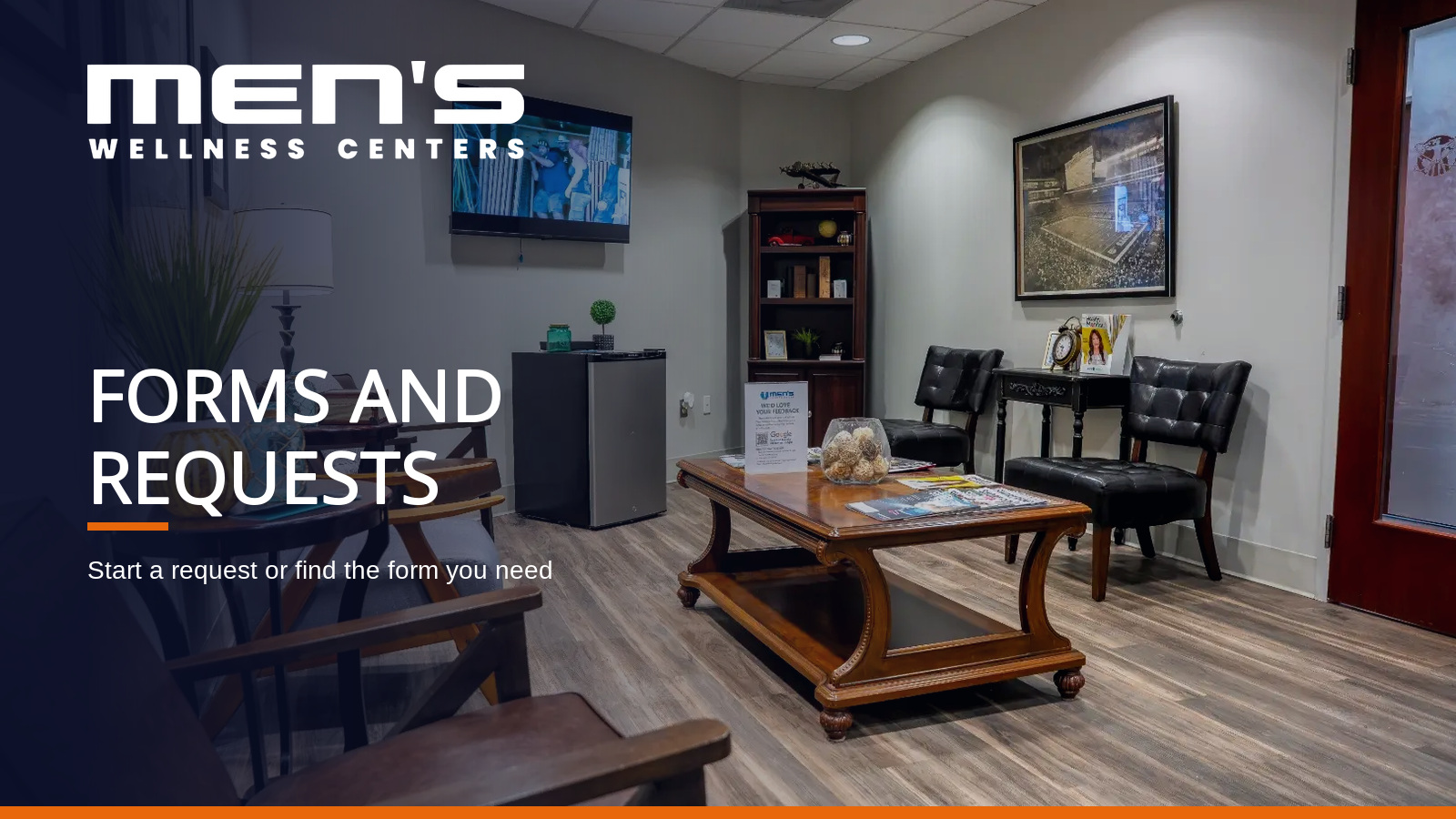
Forms and Requests
Forms library and request center

Team banner
Company-wide culture and team pages
Flat photo branding set
A second six-image set with solid navy panels, approved MWC logos, and existing clinic photography. No gradients or underline accents.
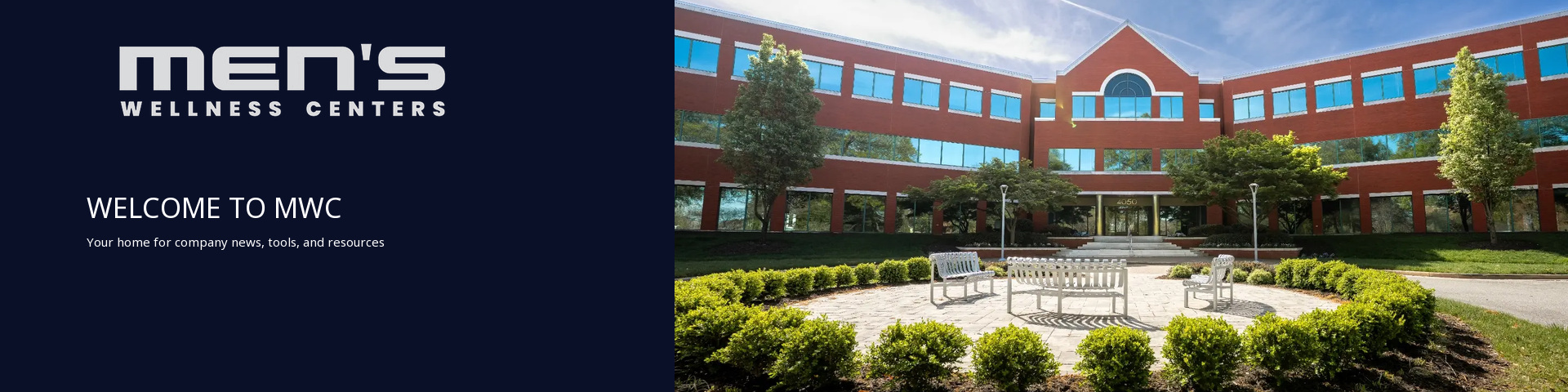
Welcome header
Home page header or full-width image web part
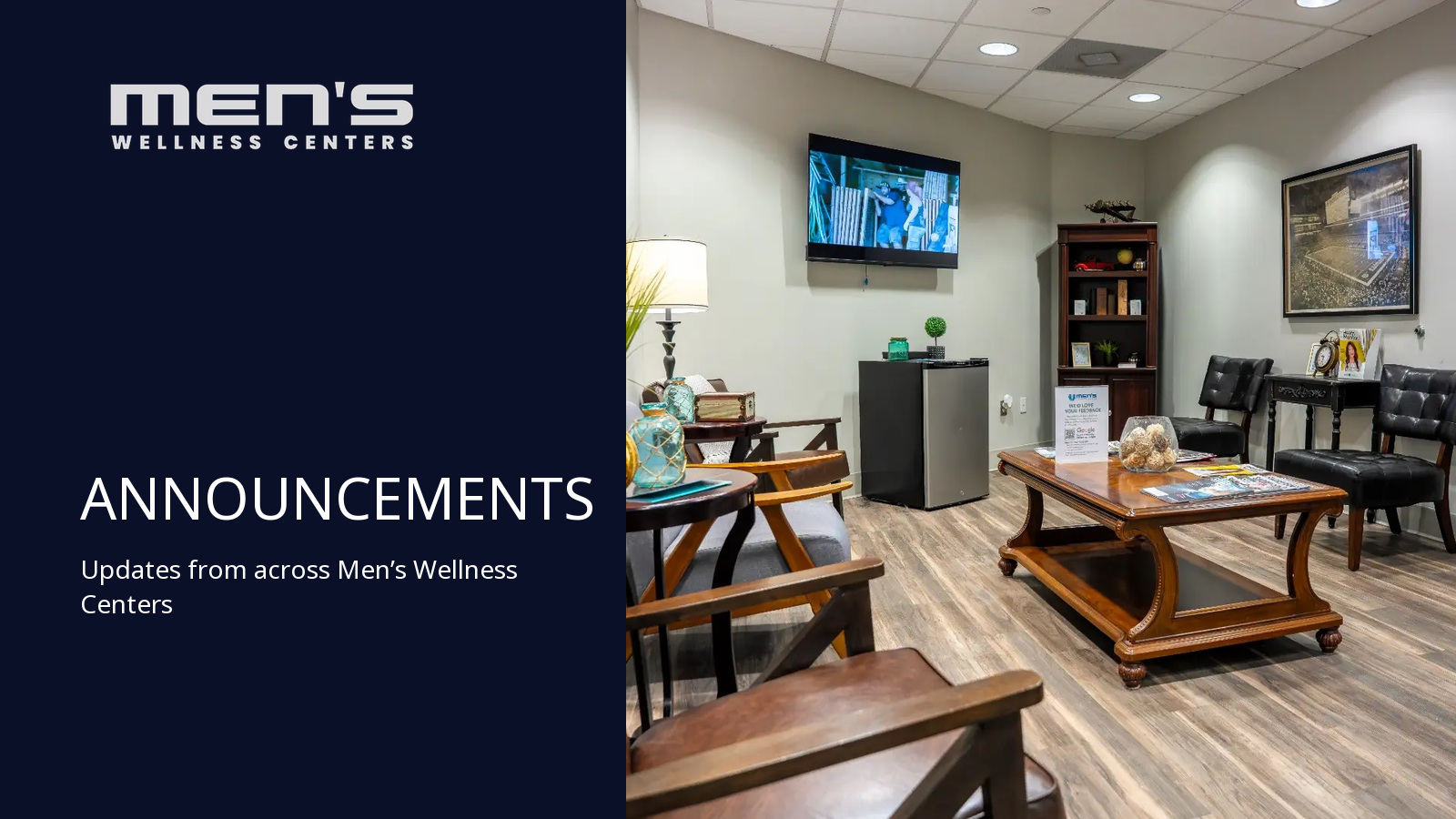
Announcements
News section and announcement landing page
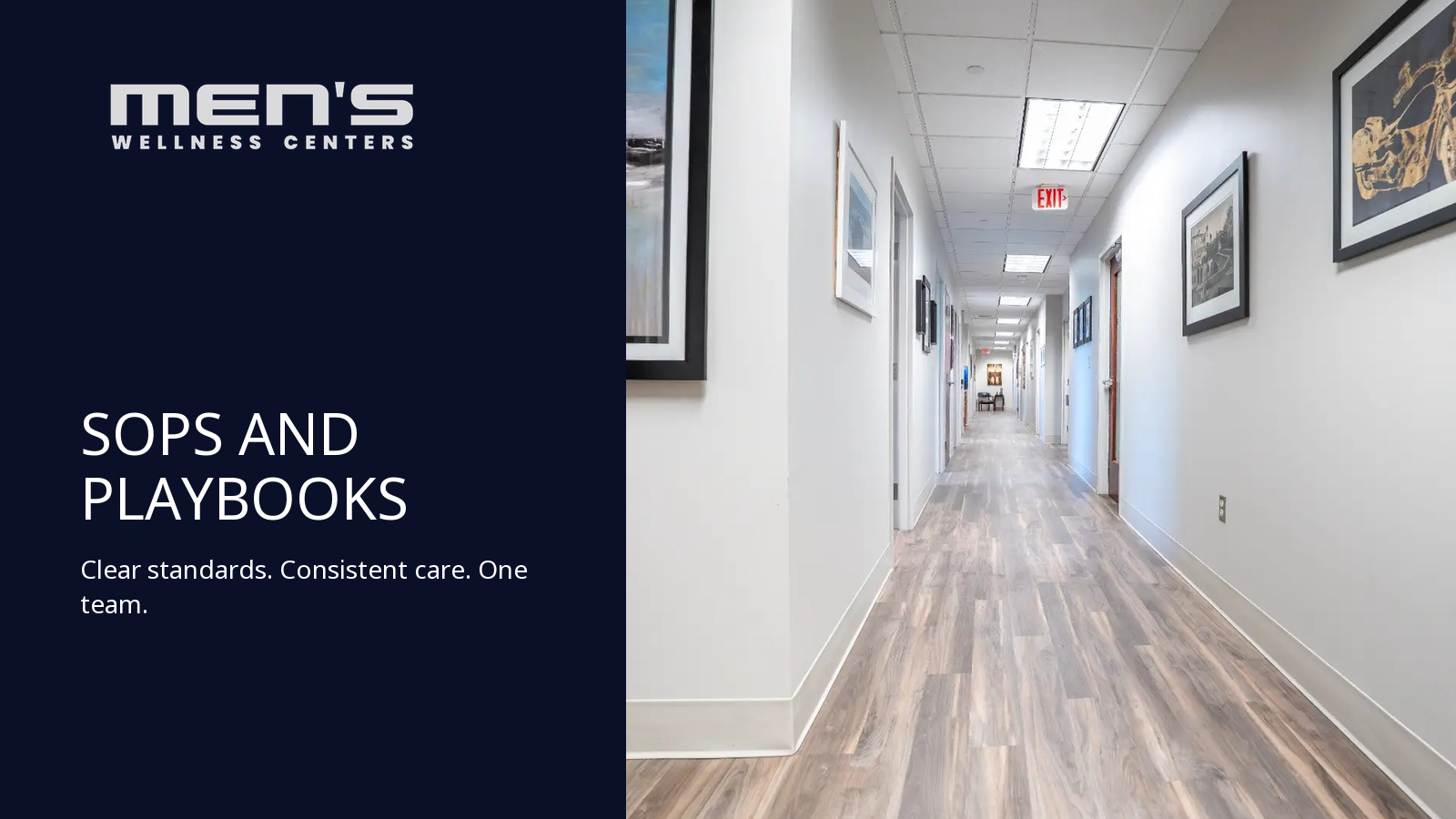
SOPs and Playbooks
Operations library and playbook navigation

HR and Benefits
People resources and benefits hub
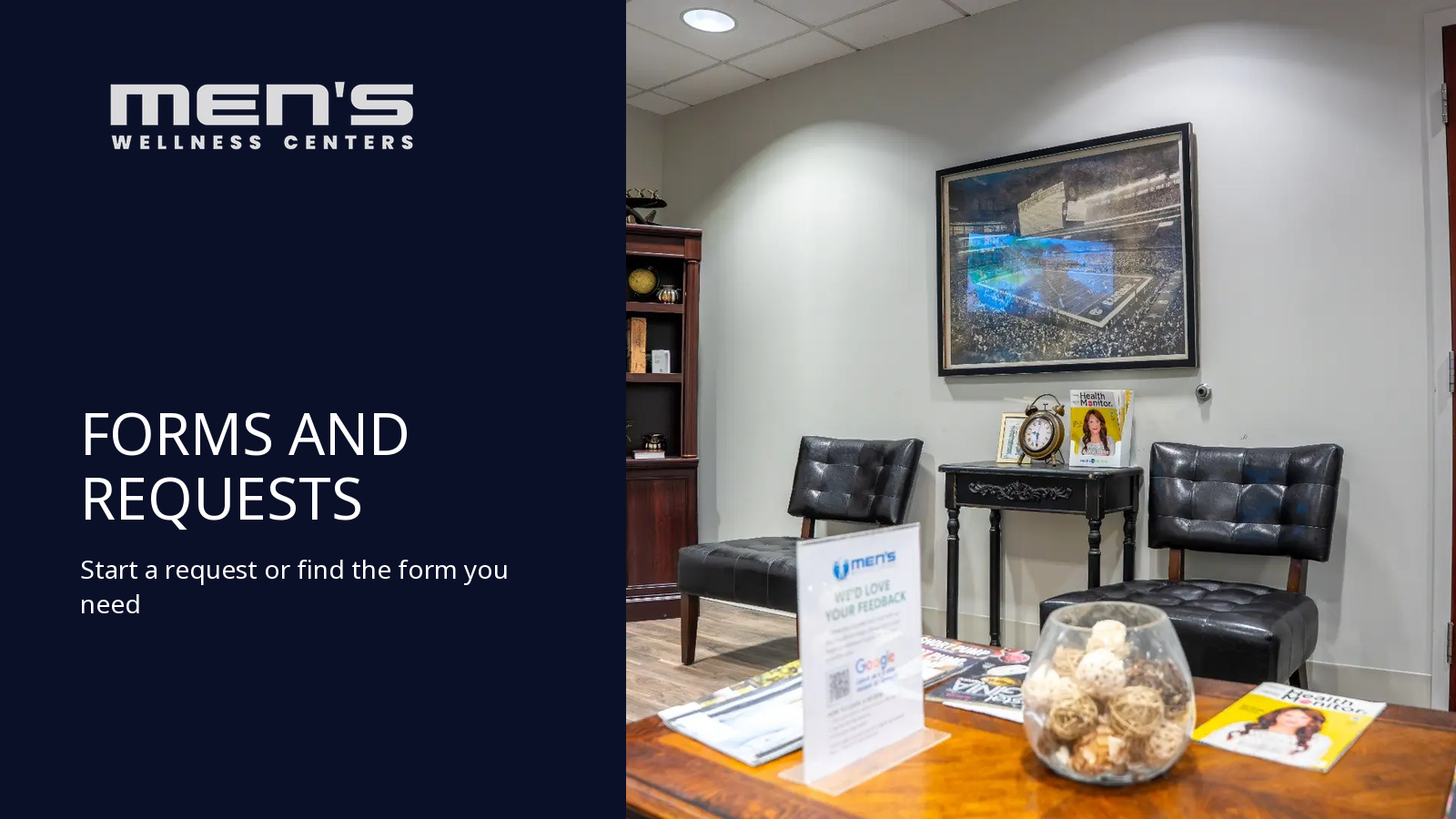
Forms and Requests
Forms library and request center
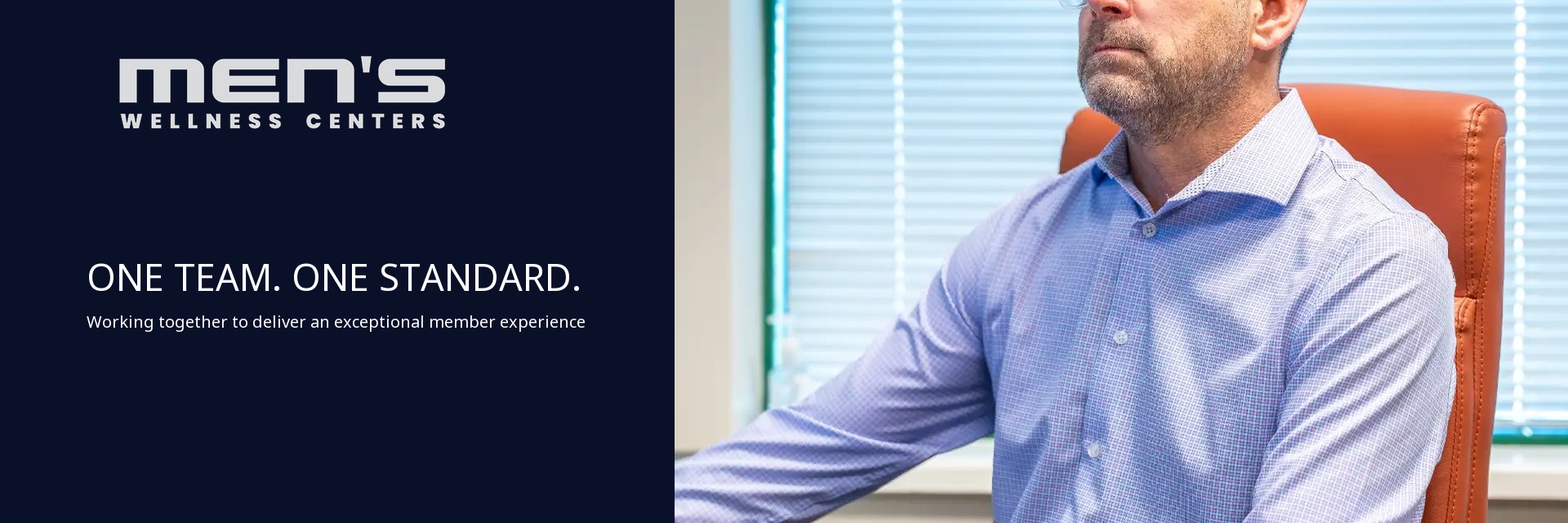
Team banner
Company-wide culture and team pages
Section tiles
Flat 1024 x 640 vector tiles sized for Quick Links image tiles and Hero panels. Navy field, one white line glyph, one orange rule. No illustration, no clutter.
Theme palette
The approved values for the SharePoint theme. Orange stays on buttons, icons, and accents only, never on the logo or body text.
{
  "name": "MWC Navy",
  "isInverted": false,
  "palette": {
    "themePrimary": "#c9560a",
    "themeLighterAlt": "#fdf7f3",
    "themeLighter": "#f8e2d3",
    "themeLight": "#f2c8ae",
    "themeTertiary": "#e69662",
    "themeSecondary": "#d76a1c",
    "themeDarkAlt": "#b54d09",
    "themeDark": "#994108",
    "themeDarker": "#713006",
    "neutralLighterAlt": "#f5f5f7",
    "neutralLighter": "#f1f1f4",
    "neutralLight": "#e5e7eb",
    "neutralQuaternaryAlt": "#d8dae0",
    "neutralQuaternary": "#cfd1d8",
    "neutralTertiaryAlt": "#c6c8d0",
    "neutralTertiary": "#8a8fa3",
    "neutralSecondary": "#5a6076",
    "neutralPrimaryAlt": "#2c3350",
    "neutralPrimary": "#0b1029",
    "neutralDark": "#080d1f",
    "black": "#050914",
    "white": "#ffffff"
  }
}Logo files
SharePoint accepts SVG for the site logo and header. Navy on light surfaces, white on the navy header.




Setup order
Apply in this order so site owners inherit the branding instead of overriding it.
1. Apply the theme
Upload the theme JSON with Add-SPOTheme in PnP PowerShell, then set it as the tenant default. Site owners select it under Settings, Change the look, Theme.
2. Set the header
Change the look, Header. Choose the Extended layout, Dark background, and upload the white wordmark. Site logo uses the m bug.
3. Configure navigation
Hub navigation order is Home, Announcements, SOPs and Playbooks, HR and Benefits, Forms and Requests. Use megamenu only when a section has three or more child pages.
4. Load the tiles
Upload the five tile images to Site Assets, then attach each one as the thumbnail on its Quick Links tile in the Image layout, or as the background of the corresponding Hero web part panel.
5. Type and copy
SharePoint cannot load Oswald in the chrome, so keep page titles in the default sans and reserve Oswald for images and PDFs. Body copy stays sentence case with no em-dashes.